
This guide takes you through every action you can take with Worker Notes, the notification types, and what to do if you can't see Worker Notes.
For how the different Worker Notes behave in more detail, see What are Worker Notes?
Before you start
- Worker Notes can be used in the web portal, the Breadcrumb mobile phone app, and the web browser app.
- To read notes, you need the View Reports and User Directory or Edit User Directory permission as the Site host or a Company host.
- To add, edit, or archive notes , you need the Edit User Directory permission as the Site host or a Company host.
- Notes are always added at site level. Open the site the worker has checked into.
- Workers and subcontractors can't see Worker Notes.
The 3 types of Worker Notes
| Type | What it does | An example |
|---|---|---|
| General | Adds helpful context for the site team. No one is notified. | "Carries an EpiPen. Contact next of kin Sam on 0412 345 678." |
| Alert | Notifies Site Hosts each time the worker checks in, at any site. | "Apprentice, first 6 months. Ensure adequate supervision." |
| Block | Stops the worker checking in at the site where the note was added. A reason is required. | "Removed from site for unsafe work practices when working at height." |
Notes are capped at 500 characters. On a worker's profile they're sorted by severity: Block notes first, then Alert, then General. Each note shows who wrote it, at which site, and when.
Adding a General or Alert note
On the web portal
- Open the Site and go to the People register or the Attendance register.
- Find the worker. In their row, open the actions menu and click Add note. You can also open the worker and click + in the Notes panel.
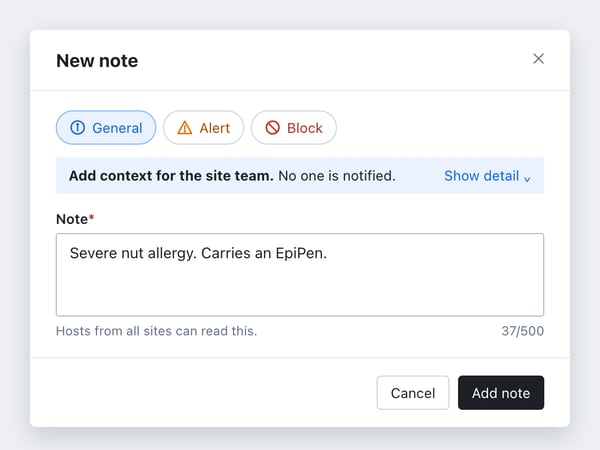
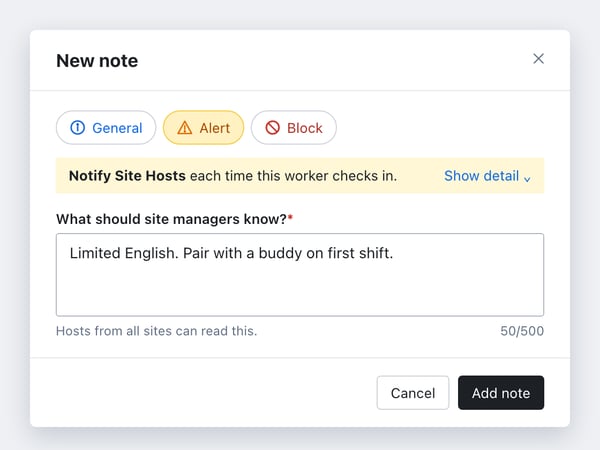
- In the New note window, choose General or Alert. Click Show detail to see who sees the note and how long it lasts.
- Enter the note. For an Alert note, the field asks What should site managers know?
- Click Add note. You'll see Note added, and the note appears on the worker's profile.
In the mobile phone app
- Select your site, then open the worker from User Directory or the site's attendance list.
- In the Notes section, tap Add note. You can also tap ⋮ at the top right and choose Add note.
- Choose General or Alert.
- Enter the note and save it.
Using the Block Worker Note
What a Block note means
- A Block note stops the worker checking in at the site where it was added, for every check-in method. Offline check-ins are stopped when they sync.
- The worker can still check in at your other sites. Site Hosts there can read the Block note and are notified when the worker checks in, so they can decide on next steps. If needed, they can add a block at their site too.
- When the worker tries to check in at the blocked site, they see "Check-in is on hold. Please contact the site team." They're not told they're blocked.
- In a foreman's crew check-in, the blocked worker is refused on their own. The rest of the crew still checks in.
- A worker can only have one active Block note per site.
- Blocks don't expire. A block stays active until someone with the right permission unblocks the worker.
- A block stops check-in, not physical entry through doors or gates.
On the web portal
- Open the site and go to the People register or the Attendance register.
- Find the worker. In their row, open the actions menu and click Block from site. You can also open the worker, click ..., and choose Block from site.
- In Why is this worker blocked?, enter the reason. Stick to the facts. Every site in your company can read it.
- Tick I understand this will prevent this worker from checking in.
- Click Block from site. You'll see Blocked note created.
In this site's registers, the worker's Notes badge changes to a solid red Blocked pill. At your other sites, they show a red circle-slash icon instead, which means blocked somewhere else.
In the mobile phone app
- Select your site, then open the worker from User Directory or the site's attendance list.
- Tap ⋮ at the top right, then tap Block from site. You can also tap Add note and choose Block. If you haven't selected a site, the app asks you to Select the site to block this worker from.
- In Why is this worker blocked?, enter the reason.
- Tick I understand this will prevent worker from checking in. and tap Block from site. You'll see Blocked note created.
Editing a note
Editing changes the note's text everywhere the worker appears. The old text is replaced and isn't kept, and the note shows Edited with the date and time. You can't change a note's type. To switch a General note to an Alert, archive it and add a new note.
On the web portal
- Open the site and go to the People register or the Attendance register.
- In the Notes panel, find the note and click More actions (...).
- Click Edit note.
- Update the text.
- Click Update. You'll see Note updated.
In the mobile phone app
- Open the worker from User Directory or the site's attendance list.
- In Notes, tap the note to open it.
- Tap Edit note, update the text, and tap Update. You'll see Note updated.
Archiving a General or Alert note
Archive a note when it no longer applies. It comes off the worker's active notes on every site but stays on record with your reason, who archived it and when. Notes can't be deleted, and archiving can't be undone. If a worker asks for a note to be removed, archive it. Once an Alert note is archived, Site Hosts are no longer notified when the worker checks in.
On the web portal
- Open the worker from the People register, the Attendance register, or their profile.
- In the Notes panel, find the note and click More actions (...).
- Click Archive note.
- In Reason for archiving, explain why. For example, "Cleared by their doctor on 5 Nov. No restrictions."
- Click Archive note. You'll see Note archived.
In the mobile phone app
- Open the worker from User Directory or the site's attendance list.
- In Notes, tap the note to open it, then tap Archive note.
- In Reason for archiving, explain why, then tap Archive note. You'll see Note archived.
Archiving a Block Worker Note
When you archive a Block note, this lifts the check-in block at that one site only. Block notes still active on other sites stay active until they've been archived. The Block note moves to the worker's archived notes with your reason.
On the web portal
- Open the Site and go to the People register or the Attendance register.
- Find the worker. In their row, open the actions menu and click Unblock worker. You can also click ... on the Block note in the worker's Notes panel and choose Unblock worker.
- In Reason for unblock, explain why the block is being lifted.
- Click Unblock worker. You'll see Worker unblocked from site.
In the mobile app
- Select the site, then open the worker from User Directory or the site's attendance list.
- In Notes, tap the Block note to open it.
- Tap Unblock worker.
- In Reason for unblock, explain why, then tap Unblock worker. You'll see Worker unblocked from site.
The worker can check in to that site straight away, and they get a You Can Check In Again notification. Their other notes aren't affected.
Viewing archived notes
- On the web portal: in the worker's Notes panel, open the filter and choose Archived. Each archived note shows the reason, who archived it and when, with the most recent first. A lifted block also shows that it was lifted, and why.
- In the mobile phone app: tap Archived notes in the worker's Notes section. This only shows when the worker has archived notes.
Finding workers with active notes
On the web portal
- Open your site, and click the People or Attendance register.
- The Notes column displays the badge corresponding to the current active note with highest severity level. The number beside it is the total of their active notes.
- Preview: hover over a badge to read the notes without opening the profile.
- Expand the notes: click a badge to see the full view and history of notes logged.
- Filters: on your site's People register, click Has notes to show all workers with active notes, or Blocked from site to show workers with Block notes at this site. On the company-wide People register, use Has notes to see workers with notes across all sites.
- Induction review: when you open a worker's induction record, the Worker notes row shows their badge. Hover over it to read the notes.
Worker Notes badges in registers
By default, the badge shown in the Notes column will always be for the Worker Note logged with the highest severity level.
| Badge | What it means |
|---|---|
| Image is on it's way | A worker has been blocked from checking in to this site. The worker can not complete a check-in here until the Block note has been archived. |
 |
The worker has been blocked from checking in at another site. The worker can continue to check in on different sites and Site hosts will be notified when they do. |
 |
Important information has been logged and requires Site hosts to be notified immediately when the worker checks in. This is usually used to be made aware when high-risk workers have arrived to site. |
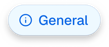 |
Information has been logged that is helpful or good to know. |
| Empty | There are no active Worker Notes. |
Suggestions for writing meaningful notes
Keep notes short, specific, and factual. Say what the site team needs to do, not the diagnosis or an opinion. Remember that hosts across your company can read every note. For example:
- Needs additional supervision on first shift.
- If seizures begin, call 000, then their emergency contact.
- Re-inducted today. Not wearing mesh gloves after first reminder.
Make sure your team is using Worker Notes in line with your company's policies and procedures, so notes stay consistent across sites.
Troubleshooting
- Add note, Edit note, Archive note or Unblock worker is greyed out: you don't have Edit User Directory at the site where the note was written. Ask your admin to update your role, or ask that site's team to make the change.
- You can't add a note from the company-wide People register: open the worker from a site instead.
- Block is greyed out with "Already blocked from this site": the worker already has an active block here. Add a General or Alert note instead.
- A note shows "Another site": it was written at a site you don't have access to. You can read the note, but not the site name.
- A worker shows the red circle-slash icon but checked in: that's expected. It means blocked at another site. Only the solid red Blocked pill means they can't check in here.
- A worker is still blocked after you unblock them: they may have a block from the older site blocking system. Older blocks still stop check-in but aren't Worker Notes. Contact our Support Team if you're not sure.
- You see "Unable to save note": wait a few seconds and try again. If it keeps happening, contact our Support Team.
Related articles
Need help or have a question?
Contact our Support Team on +1 628 304 3793 or email support@breadcrumb.co.
We're happy to help!