
Follow this step-by-step guide to ensure your team is set up correctly to use Worker Notes on their sites.
Before you start
- Worker Notes is available in the web (admin) portal, in the Breadcrumb mobile app, and the web browser app.
- Your people and site team can access Worker Notes when they have:
- View Reports and User Directory to read any Worker Note types only
- Edit User Directory to read, add, edit, and archive any Worker Note types
- Company or Site host access for company wide notes or limited to specific sites
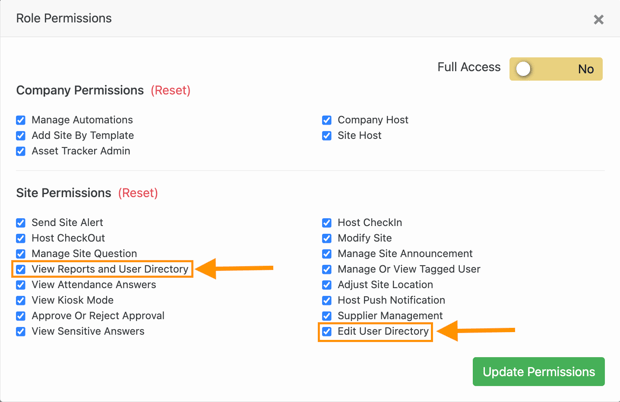
Permissions
The Host type and Permissions required
Click here for a refresher on the Host types and permissions.
| To do this | You need this Host type: | You need these permissions: |
|---|---|---|
| Read a Worker Note |
Company or Site |
Minimum: View Reports and User Directory |
| Add a Worker Note |
Company or Site |
Edit User Directory |
| Edit or archive a Worker Note | Company or Site |
Edit User Directory |
If a Site Host doesn't have permission at the site where the Worker Note was added, they will be able to read the note, but the Edit and Archive options will not be available to use (greyed out).
Checking the permissions for your team
- In the web portal, go to Company Settings > Permissions Settings > Role Definition.
- Edit the role.
- Turn on View Reports and User Directory or Edit User Directory.
Edit User Directory should only be given to selected people.
Notifications
The types and when they're sent
Site Hosts that are checked in to their site will be notified when an event connected to Worker Notes occurs.
The worker who has a Block note lifted will be notified they can check in again.
| Notification | Sent when: | Sent to: |
|---|---|---|
| Blocked Worker - Check-in Attempt | A worker tries to check in at a site they've been blocked on | The Site hosts of that site |
| Alert Note Worker - Checked In | A worker with an Alert note checks in to a site | The Site hosts of that site |
| Worker Blocked at Another Site - Checked In | A worker has a Block note on one of your sites, and they complete a check in at a different site | The Site hosts of the site they checked in to |
| Alert Note Added | A host has added an Alert note on a site | Other Site hosts on the site where the Alert note was logged, not the host who added it |
| Worker Blocked | A host has added a Block note on a site | Other Site hosts on the site where the Block note was logged, not the host who added it |
| Blocked Worker - Block Lifted | A host has archived a Block note | Other Site hosts on the site where the Block note was archived, not the host who archived it |
| You Can Check In Again | A Block note has been archived and there are no other reasons (eg a site block added in Classic) stopping them from checking in. | The worker only. It doesn't mention the block. |
Notification timing and rules
- Site hosts that are checked in to a site and has the right permissions, will receive the Worker Note notifications for that site.
- When there are no hosts checked in on the site, the notification will be routed to all hosts, on or off site as a precaution and to raise awareness of the worker on site.
- Notifications for an Alert type note will be sent every time that worker checks in (once an hour at most for the same worker).
- If a worker who has Block note type keeps trying to check-in, the hosts currently checked in on site will be notified once every 5 minutes (at most).
Updating personal notification settings
- In the Breadcrumb app, open Notification settings. On web, open Notification Settings in the web portal.
- Open your company's tab to change the six host notifications. Open Personal for your own notifications as a worker.
- Use the switch to turn a notification on or off, or keep it on and choose Push Notification, Email or both.
Each person enables/disables their own notifications, so confirm with Site Hosts they have the ones they need turned on.
Troubleshooting
- When an employee or site team can't see Worker Notes logged, add or archive a Worker Note and they need to: refer back to the Permissions matrix and check they have the correct Host type and Permissions enabled.
- If you can't see Worker Notes at all: Please contact our Support Team below.
Related articles
Need help or have a question?
Contact our Support Team on +1 628 304 3793 or email support@breadcrumb.co.
We’re happy to help!