
The Breadcrumb and Procore integration pulls your users and their project roles from Procore into Breadcrumb, so your site team shows up on the right sites with the right permissions without anyone entering them twice.
For a user to sync, a few fields in Procore need to be filled in correctly.
Before you start
- Procore access: You need Admin permissions in Procore to edit user records and project directories.
- Breadcrumb access: You need Admin permissions in Breadcrumb to change integration and permission settings.
- Integration: The Procore integration (automatic project sync) must already be set up. If it isn’t, talk to your Customer Success Manager (CSM).
Roles sync one way only. Breadcrumb imports roles from Procore, but changes made in Breadcrumb are not sent back to Procore.
Step-By-Step
Step 1: Set up company employees in Procore
These fields sync your own team (company employees) into Breadcrumb. You’ll find them in each user’s settings in the Procore company directory.
Required fields
- Country code: Select the correct country for the user’s mobile number.
- Mobile number: Enter the same mobile number the user has in Breadcrumb. Breadcrumb matches people across both systems by mobile number, so a mismatch is the most common reason a user doesn’t sync.
- Is an Employee of [Your Company]: Make sure this box is checked.
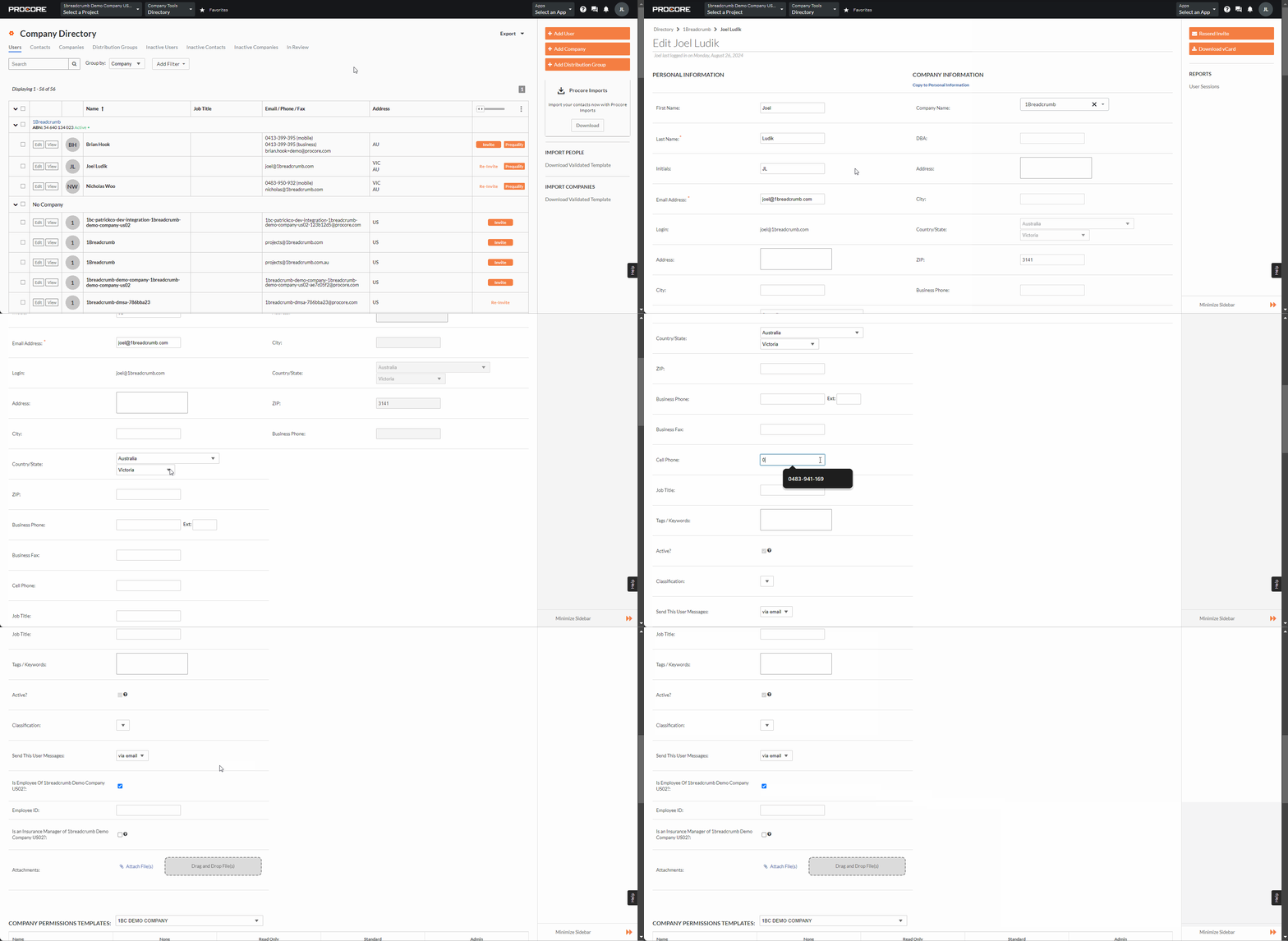
When someone is marked as an employee in Procore, Breadcrumb recognizes them as an employee when they check in. Their activity is then sent to the Timecard in the Procore Daily Log.
Note: Marking a user as an employee does not make them a site host in Breadcrumb. To give them host access and permissions on a site, add them to the project with a role (Step 2).
Step 2: Add users to a project with a role
To bring a user into a specific site in Breadcrumb with a role attached, set up the following in Procore:
- Project directory: Add the user to the project’s directory.
- Project role: Assign the user a project role. Project roles are set up in Procore under the project’s Admin settings, in Roles.
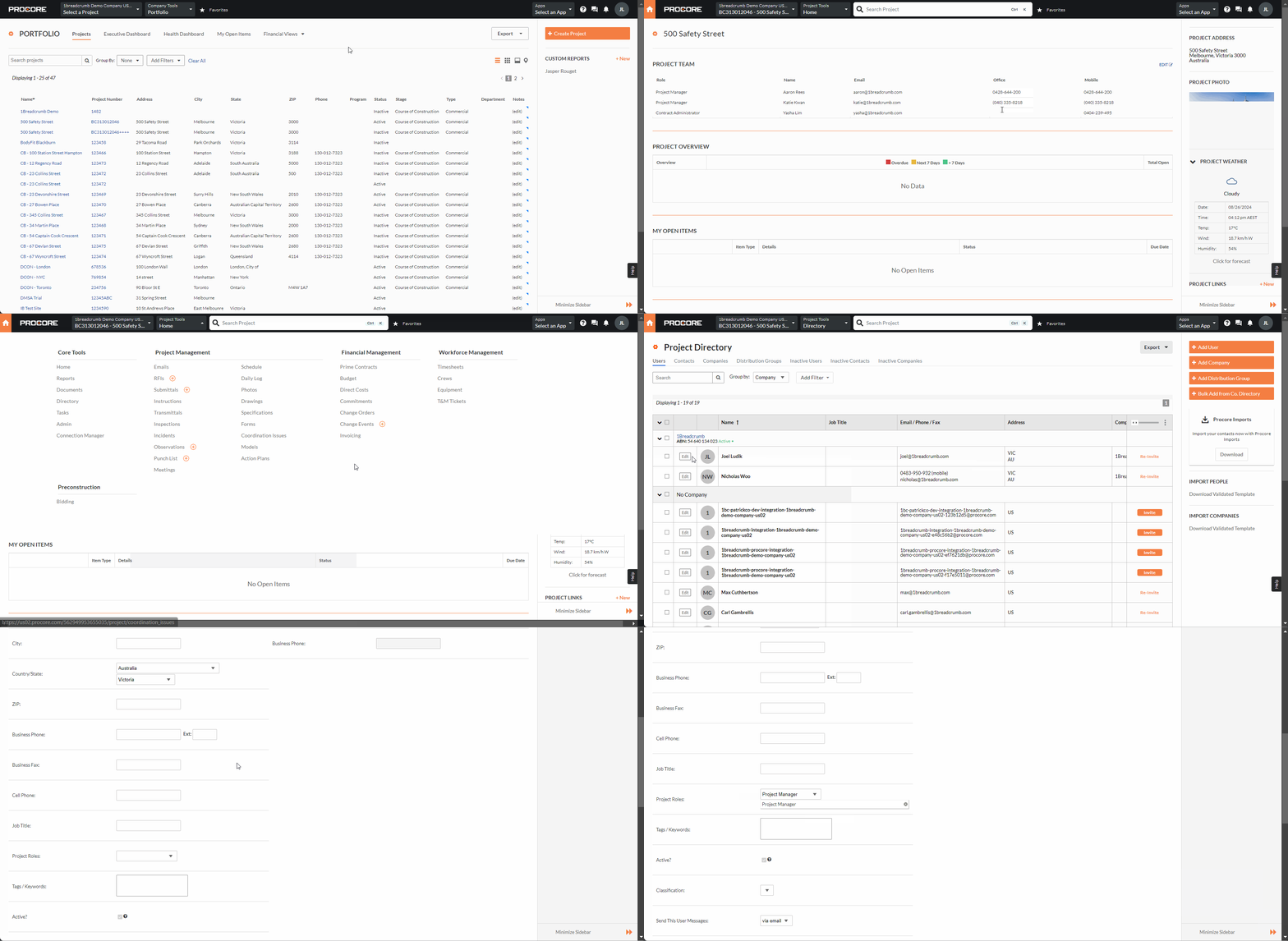
Once synced, the user appears in Breadcrumb as a company employee, with their Procore role, on every project you’ve added them to.
Step 3: Turn on role import in Breadcrumb
- On the web portal, click your name in the top-right corner.
- Select Integrations from the drop-down menu.
- Open the Procore integration settings.
- Make sure Import Project User Roles is set to Active.
- Only set Import Company Roles to Active if you want every role name in Procore to come across to Breadcrumb.
The integration syncs automatically every 3 to 4 hours. If you need a user on site sooner, you can manually force the Procore sync.
Step 4: Set permissions for each role
A synced role does nothing on its own until you tell Breadcrumb what that role can do. Create a permissions template for each role so everyone assigned to it gets the right access automatically.
- Go to Company Settings > Permission Settings > Role Definition.
- Find the role and click the permission settings button in the Actions column.
- Choose the permissions for that role and save.
For a full walkthrough, see Assign role-based permissions.
Permission modes
Breadcrumb has three permission modes. Most teams should leave this on the default, Mixed.
- Mixed (Roles and Individual User Permissions): The default. You can give people a role and individual permissions on top.
- Roles Only: Permissions come from roles only. Any individual permissions are removed, including your own, so assign yourself a role before switching to this mode.
- Individual User Roles Only: Roles are turned off and each user has their own set of permissions.
Users still not syncing?
Run through these checks before you reach out:
- Mobile number: Confirm the number and country code in Procore exactly match the user’s profile in Breadcrumb.
- Employee box: Confirm Is an Employee of [Your Company] is checked.
- Project directory and role: Confirm the user is in the project directory and has a project role assigned.
- Role import: Confirm Import Project User Roles is Active in Breadcrumb.
- Sync timing: Allow 3 to 4 hours for the next sync, or force a manual sync.
If your users still aren’t coming across, contact your CSM or our support team at support@breadcrumb.co.