
What this means
- You invite a subcontractor to upload required documents (commonly SDS and SSSP).
- The subcontractor gets an email with a link to a simple upload page (no login).
- Once they upload, your team reviews and accepts/rejects the submission, and approved docs can sync into Procore (if enabled).
When you’ll use this
- Before mobilization (pre-job safety docs collection)
- When a subcontractor hasn’t submitted the required documents yet
- When a subcontractor needs to re-upload after a rejection/request for changes
Step-by-step
What the subcontractor receives
-
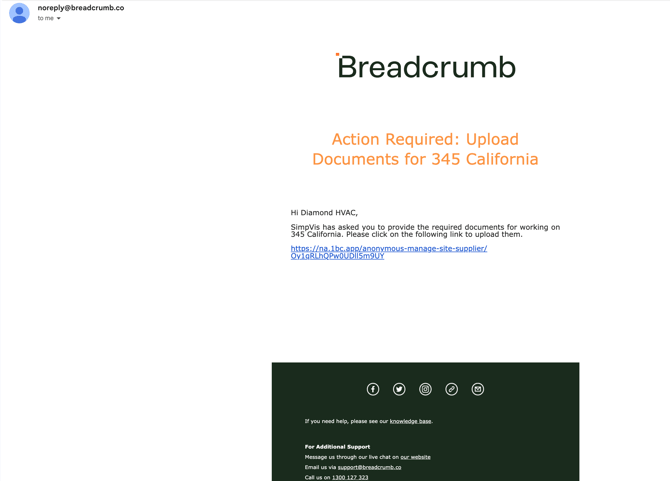
They receive a templated email with a link
-
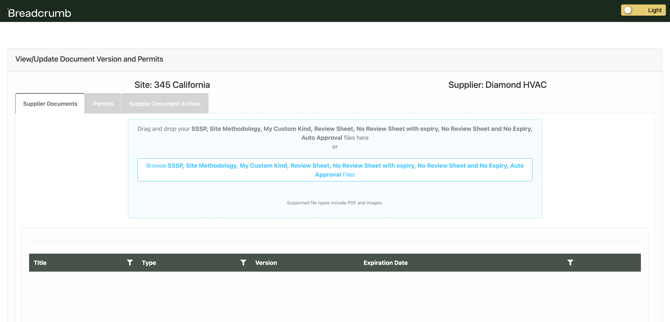
The link opens an upload page where they drag-and-drop the documents into the required categories.
-
Note: They do not need a Breadcrumb account or a Procore login
-
Track who has submitted
-
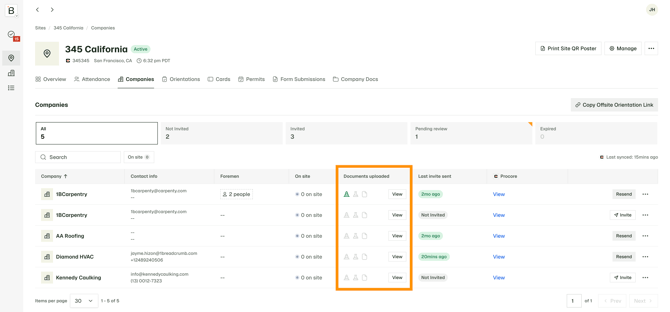
Return to the Companies list and review the status icons/colors for each subcontractor:
-
Not submitted yet
-
Submitted
-
Pending review
-
Approved/accepted
-
Rejected / changes requested
-
Review and accept/reject the documents
Common Issues
Subcontractor says they can’t access the upload link
What to check
- Email went to the wrong recipient, or they’re not using the correct invite email
What to do
- Re-send the invite to the correct contact email and confirm they’re opening the latest invite
Subcontractor uploaded, but you can’t see it
What to check
- You may be filtering the register (or looking at the wrong site)
What to do
- Go to Approvals and filter to pending, then open the Company Docs pending items for that site
They uploaded the “wrong thing” (outdated plan, wrong project, etc.)
What to do
- Reject with a comment explaining exactly what must be re-uploaded, then have them upload a corrected version via the same link
Why this matters
- It reduces back-and-forth chasing documents over email
- It makes it easier to see which subcontractors are ready to mobilize
- It keeps an auditable record of what was submitted and when
Need help?
If you don’t see the Companies/Company Docs area in the portal, contact your foreman or GC site team to confirm your access and whether Company Docs is enabled for that project.