
Every jobsite in Breadcrumb has its own set of registers. They show who is on site today, who has been oriented, and which permits and forms have come in, all for the one project you are running.
This guide is for superintendents, safety managers, and anyone else running a single jobsite day to day. If you look after records across several sites, see the admin version of this guide.
What this means
When you’ll use this
Before you start
- Registers are on web. Open the web portal on a computer or tablet.
- You only see your sites. If your jobsite is missing, ask your company admin to give you access.
- Records come from the app. When workers check in, complete orientations or submit forms on their phones, those records show up here.
Check who is on site
Attendance
The Attendance tab opens on today's check-ins. This register shows attendance-related records and activity for workers on a job site (and may also be accessible at a global view depending on your setup).
What to use it for
- Reviewing check ins and check outs (depending on setup)
- Checking who has been onsite and whenSupporting jobsite reporting and time tracking workflows (depending on setup)
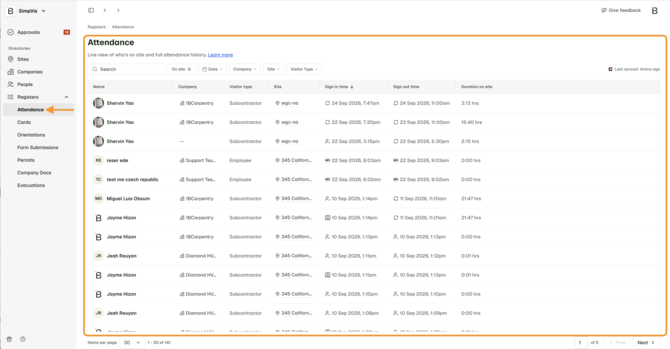
Each check-in is its own row. A worker who leaves for lunch and checks back in will show twice.
Change the date to look back at a previous day or a date range.
View Daily Log opens this project's Daily Log in Procore in a new tab, if your company is connected. Attendance hours sync there automatically.
Review orientations and credentials
Cards
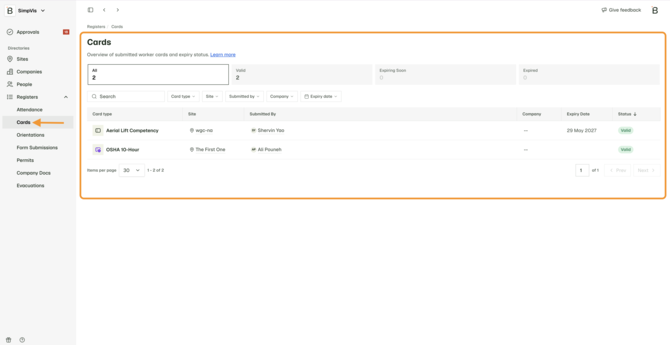
Cards shows the credentials workers uploaded during orientation, such as licenses, certifications and training cards. Check here before someone starts a task that needs a specific credential.
What to use it for
- Finding and opening a card record
- Checking card status or details (depending on what your portal shows)
- Downloading a card PDF when available
Orientations
- Finding a worker’s orientation record
- Reviewing orientation details in a full record view (when available)
- Downloading an orientation PDF for compliance or sharing (when available)
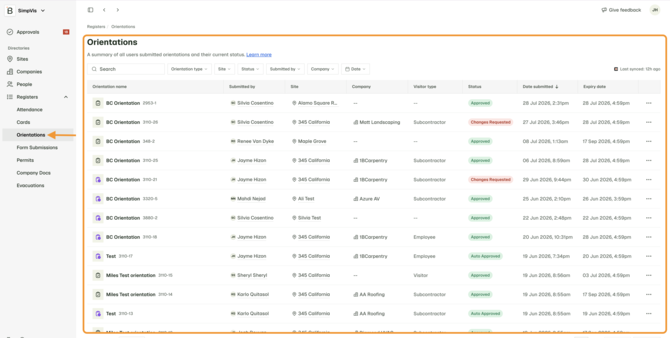
See every orientation submitted for your site. Filter by status to find the ones that still need attention:
- Auto-approved: no review needed.
- Approved: a host has approved it.
- Revision requested: sent back to the worker to update.
- Rejected: a host has rejected it.
Keep track of permits and daily forms
Form Submissions
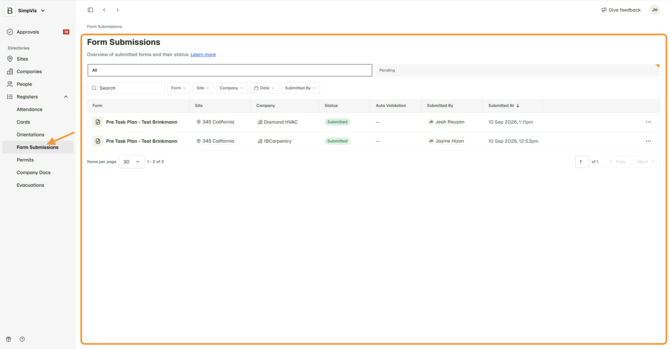
Pre-Task Plans (PTPs), JHAs and other forms your crews submit from the app land here. Filter by company, foreman or date to confirm today's PTPs are in, then open a form to see the crew listed on it.
What to use it for
- Finding a submitted form by jobsite, company, or date
- Reviewing form submission details in the record view (when supported)
- Downloading a PDF of the submission when available
Permits
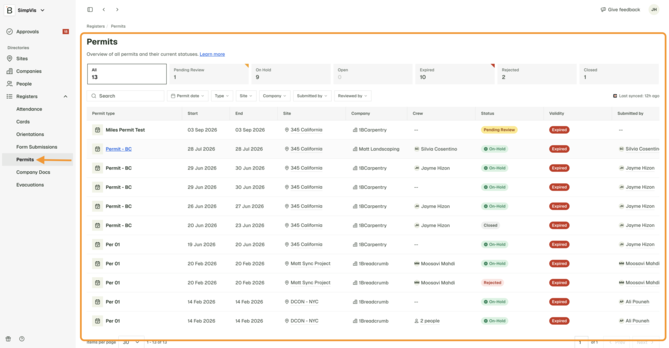
All permits for your site sit in one list, whatever the type. Filter by status to see what is open, on hold or closed.
What to use it for
- Finding permit records by site, company, worker, or date (filters vary by setup)
- Opening permit record details
- Downloading permit PDFs for jobsite compliance files
Company Docs
What to use it for
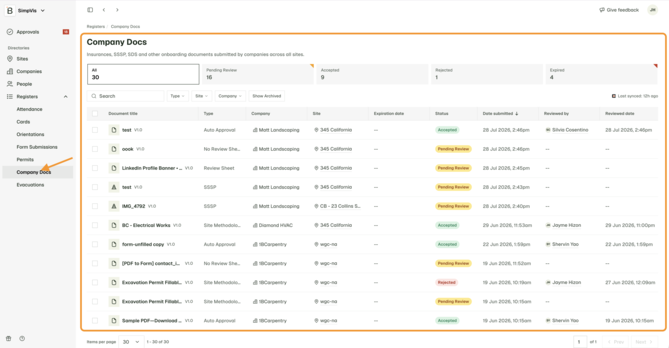
Checking what documents a company has submitted
-
Seeing document status indicators (depending on setup)
-
Opening a record and downloading a PDF when available
Evacuations
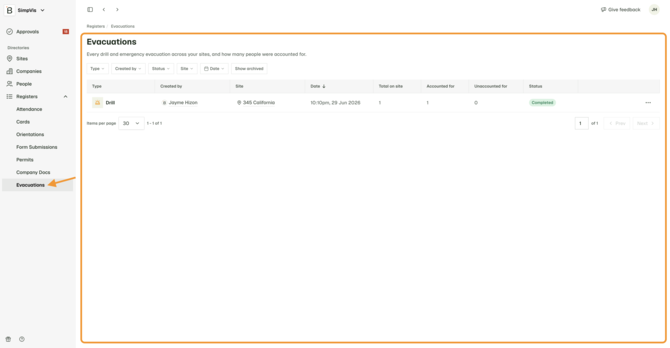
Evacuations in NextGen is a read-only review experience for evacuation records. It functionis to let company admins and site teams review evacuation drill and emergency records in the web portal without switching back to Classic. It’s designed to help you confirm who was expected at the muster point, who was accounted for, and produce exports for recordkeeping.
You can export evacuation information for sharing and compliance, depending on what you need.
Need help?
If you’re unsure where to find an evacuation record for a specific jobsite, or you think you’re missing access, contact your foreman or GC site team to confirm the right permissions and workflow for that jobsite.