
The Form tool allows General Contractors to digitize and manage any type of paper-based form onsite. This can include:
- Pre-Task Plans
- Subcontractor Toolbox Talks
- Job Safety Analysis (JSA)
- Any other custom forms created by the GC
Foremen can use this tool to easily complete and submit forms on behalf of their crew.
How it Works
1. Accessing Forms
-
When a foreman is checked in, they will see the Form tile on their dashboard.
-
Tap the tile and select the form template you wish to complete (e.g., Pre-Task Plan, Job Hazard Analysis).
2. Adding Crew to the Form
-
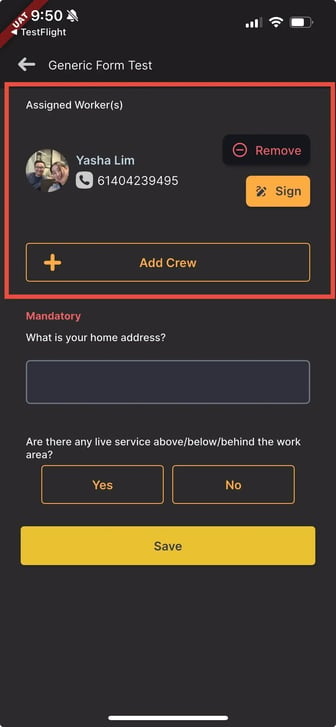
After choosing the template, the foreman will see an Add Crew button.
-
This will display workers who:
-
Are currently checked in under the same subcontractor company
-
Are not currently checked in, but belong to the same company
-
3. Capturing Worker Signatures
-
When a worker is selected, a digital signature pad will appear.
-
The foreman can pass their device to the worker to collect their digital signature.
-
Multiple workers can be added and signed onto the same form.
4. Submitting the Form
-
Once all required information and crew signatures are collected, the foreman submits the form to the General Contractor.
5. Where to View Completed Forms
-
Host Panel Form Tile → The General Contractor can review submitted forms and signatures.
-
Foreman Submitted Forms List → The foreman can track and reference all forms they have submitted on the app.