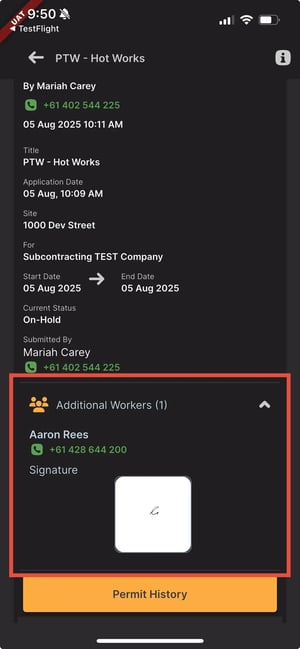
Who can do this? Foremen (allocated by the General Contractor).
Where: Mobile app, when selecting the Permit Tile
How it works
1. Accessing Permit Submission
-
When a foreman is checked in on site, they will see the Permit tile on the app.
-
If selected, they will be able to submit a permit to the General Contractor for their subcontractor company.
2. Adding Crew to the Permit
-
During permit submission, the foreman will see an Add Crew button.
-
This list will display:
-
Workers who are currently checked in under their same company
-
Workers from their same company who are not currently checked in
-
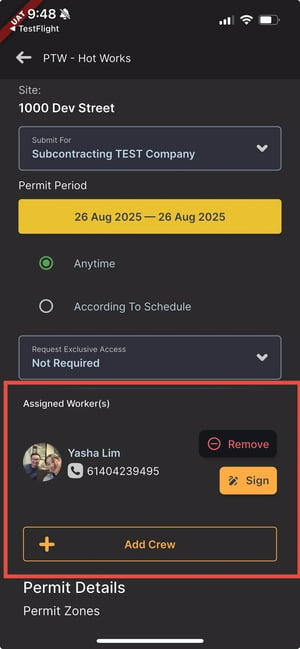
3. Capturing Worker Signatures
-
When a worker is selected, a digital signature pad will appear.
-
The foreman can hand their device to the worker to provide a digital signature, confirming their acknowledgment of the permit.
-
Multiple crew members can be added and signed in the same permit.
4. Permit Submission
-
Once all required details and crew signatures are collected, the foreman submits the permit to the General Contractor for review.
5. Where to View the Permit
-
Submitted permits can be viewed in two places:
-
Host Approval Tile → where the General Contractor can review and approve it
-
Foreman’s Submitted Permits List → for easy reference and record keeping
-