
Integrate Autodesk Construction Cloud (ACC) with Breadcrumb by creating a custom integration in Autodesk. This setup enables secure access to your ACC data through Autodesk Platform Services (APS), allowing Breadcrumb to connect and synchronize with your Autodesk environment.
Prerequisites
Before starting, ensure the following requirements are met:
-
You have Company Administrator access in Autodesk Construction Cloud.
-
The Breadcrumb Dev Team has provided an APS Client ID to your Breadcrumb Customer Success Manager (CSM).
-
Your CSM has shared this APS Client ID with you.
-
This setup is required only once per customer
Step-by-Step
1. Install the Breadcrumb app from Autodesk Marketplace
Customer installs the Breadcrumb app from the Autodesk App Marketplace.
2. Contact Breadcrumb to provision your service account
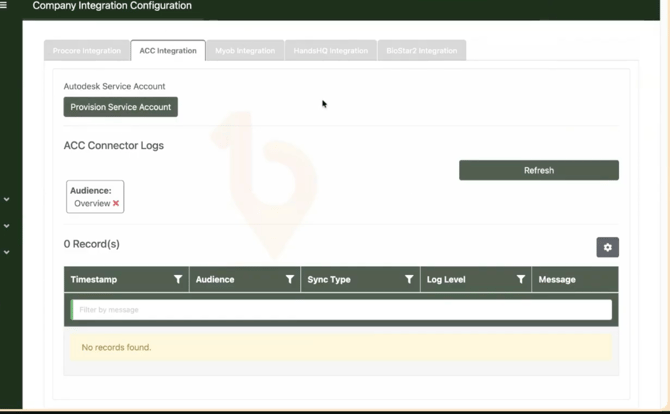
Open Breadcrumb → Integrations page. If the ACC integration isn't set up yet, you'll see:
"The ACC integration is not set up for your company yet. Contact 1Breadcrumb to get started."
Contact your CSM. They'll take it from there.
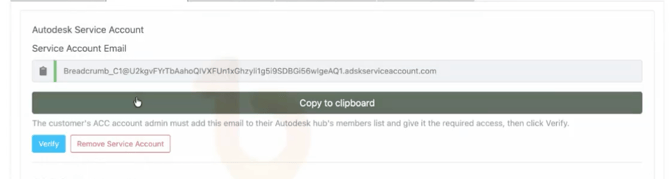
What happens on Breadcrumb's side (informational — customer doesn't do this): A 1Breadcrumb team member clicks Provision Service Account. Breadcrumb generates a dynamic service account email in the format breadcrumb_C{companyId} — for example, breadcrumb_C1. Each customer gets a unique one, keyed to their company.
Why isn't this step self-serve?
Autodesk imposes a hard cap on service accounts we can create. Restricting provisioning to 1Breadcrumb team keeps every account intentional and lets us undo mistakes.
3. Copy the generated email
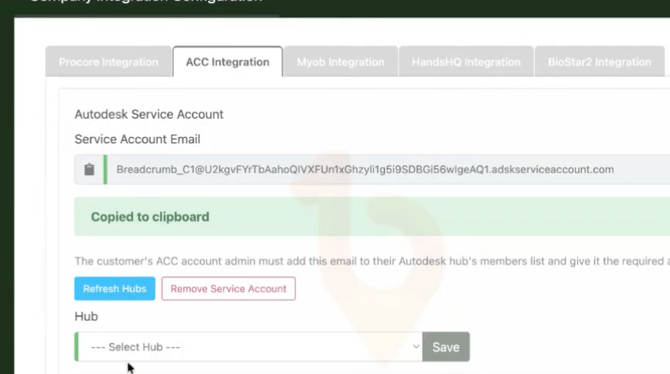
Once your CSM has provisioned the account, you'll see the service account email on the Integrations page. Copy it to your clipboard.
4. Open Autodesk ACC → Members
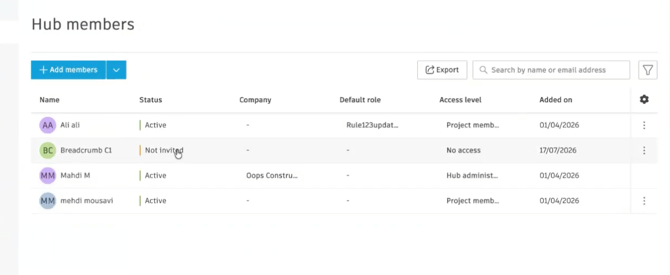
Go to the customer's ACC account and open the Members section.
5. Add the service account as a member
Click Add Member, paste the email, and Save.
6. Open ACC → Projects
Navigate to the projects list and pick the specific project(s) you want Breadcrumb to sync with.
7 · Add the service account as a project member
Inside each project → Members → search for "breadcrumb" → add the service account with the appropriate access level.
⚠️ Per-project is required. Account-level membership alone isn't enough — every project you want to sync needs the service account added as a project member.
Verification — back in Breadcrumb
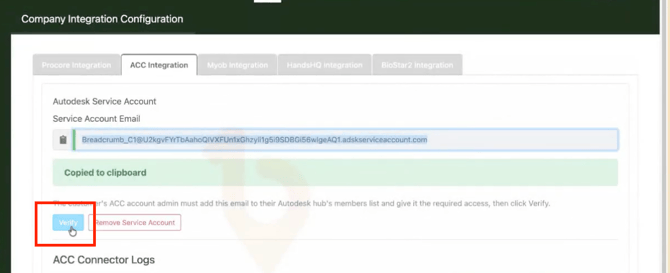
9. Return to Breadcrumb → Integrations → click Verify
Who can do this? Your company admin OR the 1Breadcrumb team.
Breadcrumb calls back to ACC to confirm the service account has access.
10. Breadcrumb displays the ACC hubs
Who can do this? Your company admin OR the 1Breadcrumb team.
Once verified, Breadcrumb shows every ACC hub the service account can see. Select your ACC hub in the dropdown
11. Click Save
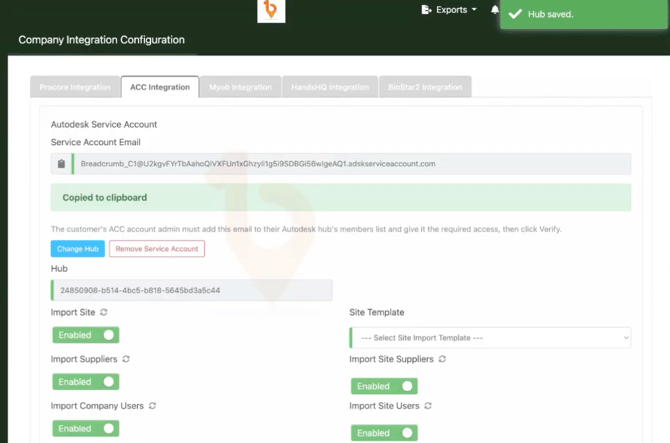
Locks in the connection.
12. Dropdowns populate dynamically
Daily log templates, roles, projects available under that hub — all pulled live from ACC. The integration is ready to use.
Common Scenarios
Scenario A. You want to change the connected hub
Contact your CSM. On 1Breadcrumb's side:
-
The 1Breadcrumb team clicks Unlink Hub — this returns the integration to step 10 (hub selection state).
-
You or the Breadcrumb team select the new hub and click Save (steps 10-11 again).
-
You redo any downstream config affected by the hub change.
Scenario B. Your CSM accidentally provisioned the wrong account
The CSM can unwind this cleanly:
-
Unlink any hubs first (unprovision is blocked while hubs are linked)
-
Then click Unprovision — the service account is deleted and the Autodesk account slot is recovered.
You'll return to Step 2 (contact 1Breadcrumb) and can start again.
Scenario C. Verify keeps saying "not verified"
Most common cause is ACC sync latency. Try:
- Confirm the service account is added at both account level and project level in ACC (Steps 5 and 7)
- Wait 15-20 seconds
- Retry Verify
Scenario D · You want to leave the integration entirely
Contact your CSM. They'll:
- Unlink all hubs
- Unprovision the service account
The integration returns to the "not set up" state. Your ACC data is no longer available in Breadcrumb (as expected).