
After an Autodesk project has been connected to Breadcrumb, companies assigned to that project will automatically sync to the Breadcrumb Site Supplier List.
This allows project-specific suppliers and contractors to be managed within Breadcrumb.
Prerequisite
Before companies can sync:
-
The Autodesk project must already be connected to Breadcrumb.
-
The Breadcrumb Dev user must be added to the project.
How the Project Company Sync Works
Companies assigned to the project in:
Project Admin → Companies
will automatically sync to the Breadcrumb Site Supplier List for that project.
Step-By-Step
Step 1 — Open Project Admin
-
Open the Autodesk project.
-
Navigate to Project Admin.
-
Select Companies.
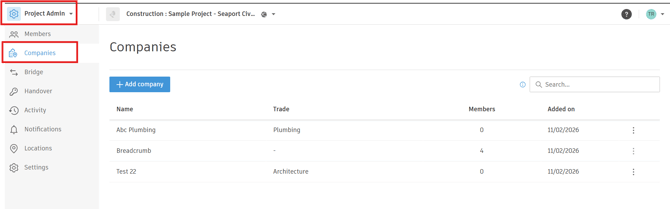
Step 2 — Add a Company to the Project
-
Add the relevant company to the Project Companies list.
-
Save the changes.
Once added, the company will automatically sync to the Breadcrumb Site Supplier List.
Important: ERP ID not required
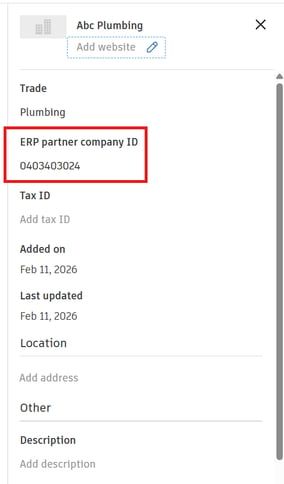
Unlike the Procore integration, if a company does not have an ERP ID, it will still appear in Breadcrumb.
Data That Syncs
The following information is synchronized:
-
Company Name
-
ERP Partner Company ID
Sync Result
When a company is added to the Autodesk project:
Autodesk Project Company
⬇
Breadcrumb Site Supplier List
The company will now be available for use within the corresponding Breadcrumb site/project.
Important Notes
-
The project must already be connected to Breadcrumb.
-
Updates made in Autodesk will be reflected in Breadcrumb after synchronization.