
When workers check in and out using Breadcrumb, their labor data can automatically sync to the Autodesk Construction Cloud Forms tool within the Work Log.
This allows project teams to track subcontractor labor activity and hours directly inside Autodesk without manual entry.
Data That Syncs from Breadcrumb
Breadcrumb will send the following information to the Autodesk Work Log form:
-
Subcontractor Name
-
Total Workers
-
Total Hours
-
Average Hours Per Person
-
Work Performed Notes (optional)
These values are populated in the corresponding Work Log fields in Autodesk.
Real-Time Worker Sync
Breadcrumb will sync certain information in real time while workers are still active on site.
During active work periods, the following information will sync:
-
Subcontractor name
-
Total number of workers currently on site
This allows Autodesk users to immediately see which subcontractors currently have workers active on the project.
Active Worker Tracking
While workers remain checked in:
-
Total hours will not be finalized
-
The system considers the labor entry still active
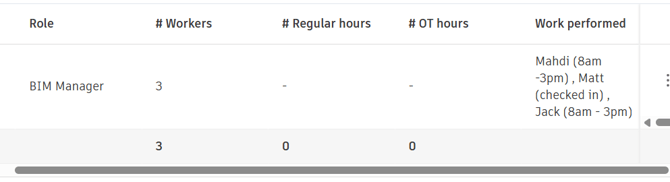
During this time, Breadcrumb will populate the Work Performed Notes field with worker status information, indicating:
-
Workers currently on site
-
Workers checked in
-
Workers checked out
Example:
Mahdi (8am – 3pm), Matt (checked in), Jack (8am – 3pm)
(Example shown below)
Final Hour Calculation
Once all workers for a subcontractor have checked out, Breadcrumb will update the Autodesk Work Log with:
-
Total Hours
-
Average Hours Per Person
This ensures hours are only finalized after work activity is complete.
Example Work Log Output
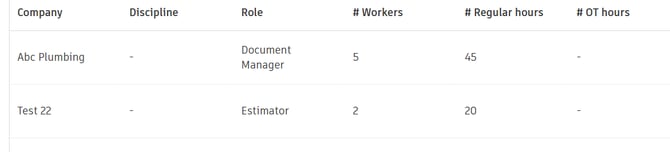
The Autodesk Work Log will display entries similar to:
| Company | Role | # Workers | Regular Hours |
|---|---|---|---|
| Abc Plumbing | Document Manager | 5 | 45 |
| Test 22 | Estimator | 2 | 20 |
(Example shown below)
Important Requirement: Form Status
For the integration to update worker hours:
The Autodesk Work Log form must remain in "In Progress" status.
If the form is closed, Breadcrumb will no longer be able to sync or update worker hours, and updates will fail.
Sync Summary
| Data Type | Sync Behavior |
|---|---|
| Subcontractor Name | Real-time |
| Worker Count | Real-time |
| Work Performed Notes | Real-time updates |
| Total Hours | After all workers check out |
| Average Hours Per Person | After all workers check out |
Configuring attendance sync to ACC
This guide covers how attendance sync from Breadcrumb populates the Work performed column in the ACC work log (Forms tool), and how to configure exactly what gets written there.
Your options
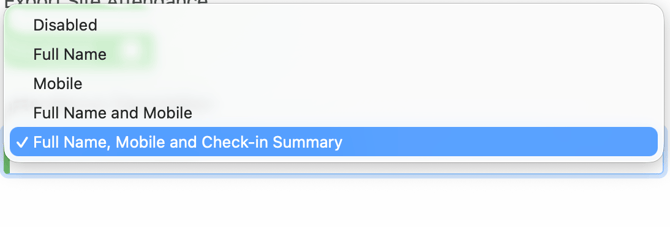
There are four options for the Work performed column:
1. Disable. Breadcrumb does not populate the Work performed column at all. Use this if your supervisors want the column free for their own daily notes.
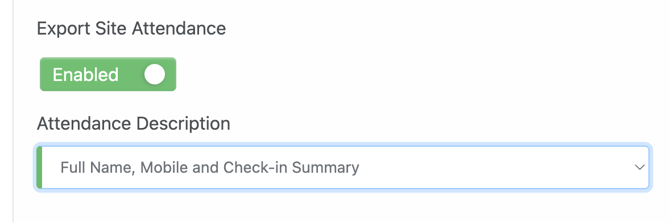
2. Full name, mobile and check-in summary. The current behavior. Each entry includes the worker's full name, mobile number, and whether they were checked in / working.
3. Full name only. Syncs each worker's name only — no mobile number and no working status.
4. Mobile only. Syncs each worker's mobile number only — no name and no working status.
How to set it
-
Open your ACC connector configuration in Breadcrumb.
-
Find the attendance sync settings for the Work performed column.
-
Select one of the four options above.
-
Save your changes.
From the next sync onward, the Work performed column will follow your chosen setting.
Key Notes
-
Real-time worker counts help track active subcontractors on site.
-
Final hours only sync once all workers have checked out.
-
The Work Log form must remain open for updates to occur.