
Roles created in Autodesk Construction Cloud (ACC) can automatically sync to Breadcrumb. This allows project teams to maintain consistent worker roles between both systems.
Breadcrumb uses Autodesk roles to categorize workers, assign responsibilities, and support project reporting.
Important:
How roles and members are connected
Even though members and roles have their own sync toggles, the two are loosely tied together. A role does not sync from ACC on its own — it only comes across when it's attached to a member who has already synced.
For a role to appear in your Breadcrumb company settings, that role must be allocated to a member who:
-
Has synced as a company or site host, and
-
Has a phone number
In other words, a role cannot be synced directly from ACC without being attached to a member who has synced. No synced member with that role means the role won't sync across.
Where Roles Are Managed in Autodesk
Roles are created and managed in:
Hub Admin → Roles
(Example shown below)
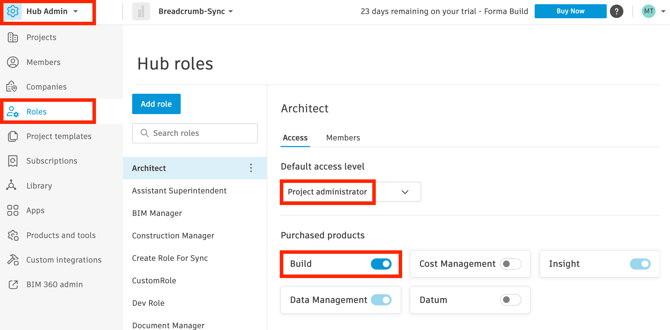
Any roles created here can be synced to Breadcrumb if they meet the required conditions.
Requirements for Roles to Sync
For a role to sync from Autodesk to Breadcrumb, it must meet the following requirements:
-
The role must have Build product access enabled
Only roles that meet the above can be synced to Breadcrumb.
How to Create a Compatible Role
-
Log in to Autodesk Construction Cloud.
-
Navigate to Account Admin.
-
Select Roles.
-
Click Add role.
Configure the role with the following settings:
-
Default access level: Project administrator
-
Purchased products: Enable Build
Once saved, the role will be eligible to sync to Breadcrumb.
Configure which Roles Sync Across
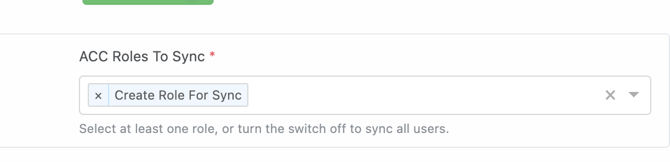
This walks you through Sync Users by Roles in your Autodesk Construction Cloud (ACC) integration. It's a setting that gives you control over exactly which ACC members become site hosts in Breadcrumb, so you only sync the people who should be there.
Why use this setting
In ACC it's common to assign roles to external members: external subcontractors, external architects, and so on. Without this setting, those external members would sync into Breadcrumb as site hosts alongside your internal team.
Sync Users by Roles lets you filter the sync by role. A host can make sure that only internal roles that should be allocated as site hosts sync across. This greatly improves control over the integration and keeps your site host list to the internal admin users who belong there.
Step-By-Step
Step 1 — Open your ACC configuration
In your ACC integration configuration, find the Sync Users by Roles setting.
Step 2 — Enable Sync Users by Roles
Turn the setting on. Once enabled, a drop-down selector appears.
Step 3 — Review the available roles
The drop-down shows the roles configured on your connected ACC account. These are the roles you can choose to sync.
Step 4 — Choose which roles to sync
You have two options:
Leave the drop-down empty (sync all roles). If you don't select any roles, every role will sync — as long as the member has a phone number on the site member list in ACC.
Select specific roles. If you select one or more roles in the drop-down, only members with a phone number and one of the selected roles will sync. Members with any other role will not sync across.
Step 5 — Save your configuration
Save your changes. From now on, only the members who meet your criteria, a phone number plus a matching role — will sync into Breadcrumb as site hosts.
A quick example
Say your ACC account has these roles: Project Manager, Site Engineer, External Subcontractor, and External Architect.
-
If you select Project Manager and Site Engineer in the drop-down, only members with a phone number who hold one of those two roles will sync. Your external subs and architects stay out of your site host list.
-
A member who is both an External Subcontractor and a Site Engineer will still sync, because Site Engineer is selected.
Good to know
-
The phone number requirement always applies, whether or not you select specific roles. No phone number on the ACC site member list means no sync.
-
You can update your selected roles at any time from the ACC configuration.
Data That Syncs
When a role meets the sync requirements, the following information will be transferred to Breadcrumb:
-
Role Name
The role will then become available for use within Breadcrumb when assigning workers or managing site records.