
Beta feature: Available only on sites where your company has enabled AI Review.
Who can do this? Foremen (allocated by the General Contractor).
Where: Mobile app, when selecting the Forms Tile
Before you start
- Update the Breadcrumb app to version 1.3.92 or later.
- You need an internet connection.
Step-by-step: submit your Generic Form
- Open the Breadcrumb app and start your form as usual.
- Fill in every section.
- Tap Submit.
- Wait a few seconds while the AI feedback loads.
- Read the banner at the top and the list of findings.
- Tap Modify to fix your plan, or Submit anyway if it's available.
Understand your feedback
Each finding has a colored tag so you can see what to fix first.
|
Tag |
What it means |
|---|---|
|
🔴 Major |
A serious gap your company wants fixed before work starts |
|
🟡 Minor |
Something to improve, such as vague wording or missing detail. |
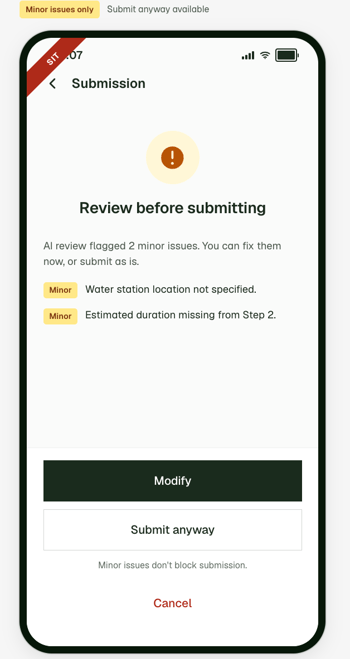
State 1 — 🟡 Review before submitting
When it shows: the AI found only Minor issues (no Majors).
What the worker sees:
- Yellow status banner at the top: "Review before submitting"
- List of finding cards, each with a yellow Minor pill
- Two buttons available: Modify (go back and fix) or Submit anyway (with confirmation)
Behaviour: the worker isn't blocked. They read the findings, decide whether to edit or push through, and confirm if they submit anyway.
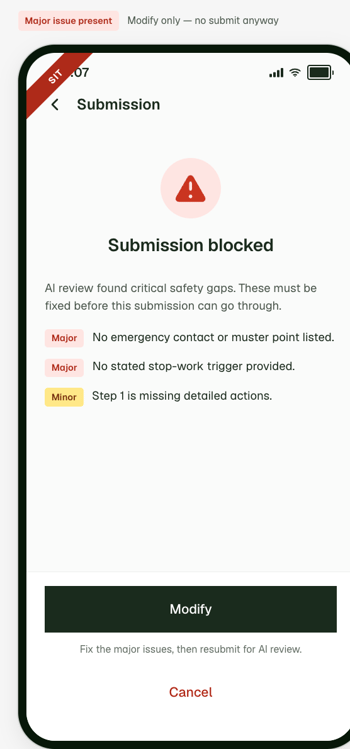
State 2 — 🔴 Submission blocked
When it shows: the AI found at least one Major issue and the template is set to Must fix all or Can submit with minor.
What the worker sees:
- Red status banner at the top: "Submission blocked"
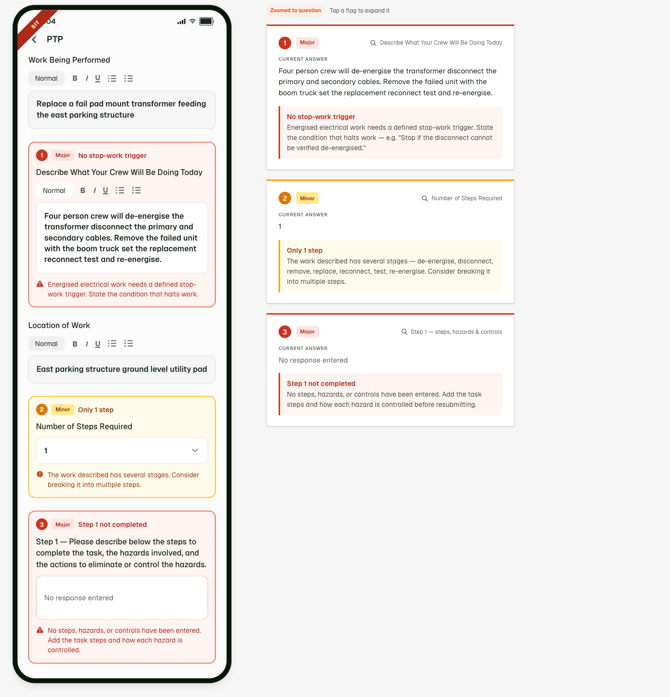
- Finding cards mixed with red Major pills and (possibly) yellow Minor pills
- Only one button available: Modify. Submit anyway is hidden.
Behaviour: the worker cannot submit. They must go back, fix the Major findings, and re-run the AI check. This is the intended pattern for high-consequence work.
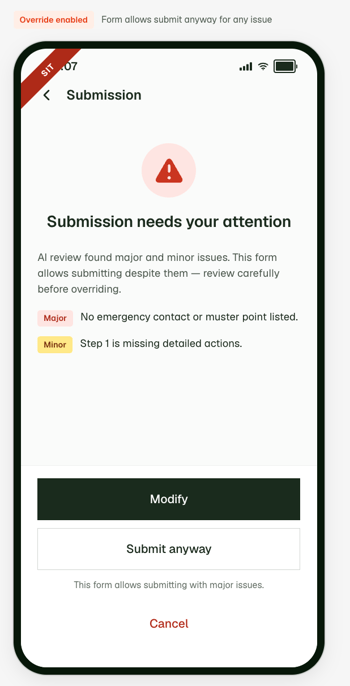
State 3 — ⚠️ Submission needs your attention
When it shows: the AI found a Major issue but the template is set to Can submit with any issues (the permissive mode).
What the worker sees:
- Amber warning banner at the top: "Submission needs your attention"
- Finding cards with the Major and Minor pills as normal
- Both buttons available: Modify or Submit anyway (with confirmation)
Behaviour: the worker sees the warning but is not blocked. Useful when you're tuning your system instructions and want workers to see what the AI is saying without it stopping them.
Modify and resubmit
- Tap Modify to go back to your form.
- Find the section each finding mentions and add the missing detail.
- Tap Submit again. The AI checks your updated plan.
- Repeat until the plan is clear, or Submit anyway if you're happy to send it.
Submit anyway
If Submit anyway is available, tap it and confirm. Your submission goes to your host with the AI findings attached, so your host can see what was flagged.
If your submission was rejected:
Read your host's comment, then start a new form and use 'Copy From Previous Version' feature.
Common issues
Submit anyway isn't showing.
-
Your plan has a Major finding or Minor finding and your site requires it to be fixed. Tap Modify, fix the findings and submit again.
The AI check didn't run or showed an error.
-
Check your internet connection and try again. If no feedback shows, your site may not have AI review, you can proceed.
I don't agree with a finding.
-
The AI is a guide; your host makes the final decision. Fix what you can, and talk to your foreman or site host if something doesn't apply to your task.
Can I fill in my form in another language?
-
Check with your GC.
Need help?
Contact your foreman or GC site team to confirm AI Review is turned on for your site.